Bulk Import Change Events in Procore
Project buyouts, T&M ticket batches, and vendor invoice rollups all share the same bottleneck: getting hundreds of line items into Procore without re-typing them. Three import paths cover it. CSV templates, Excel, and AI-parsed PDFs.
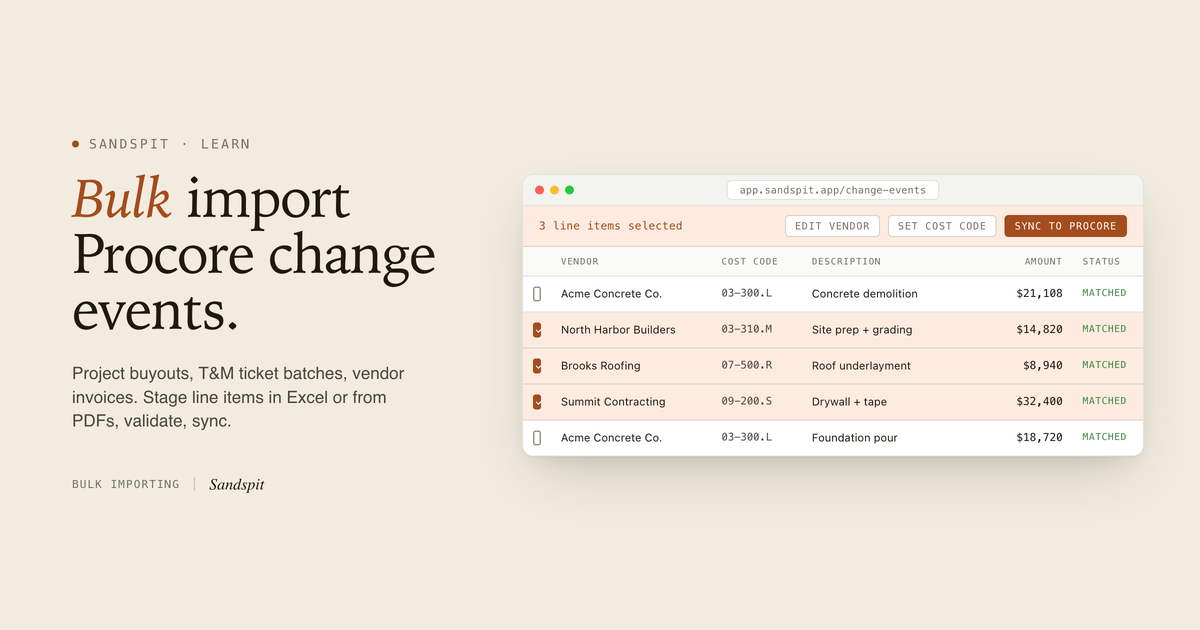
Quick answer. Procore supports CSV imports of change event line items inside an existing change event. For larger workflows like project buyouts, vendor invoice batches, and T&M ticket runs, teams use Sandspit to prep line items in Excel, extract them from PDFs with AI, validate against the project schema, and sync hundreds of rows to Procore in one pass.
What are Procore change events
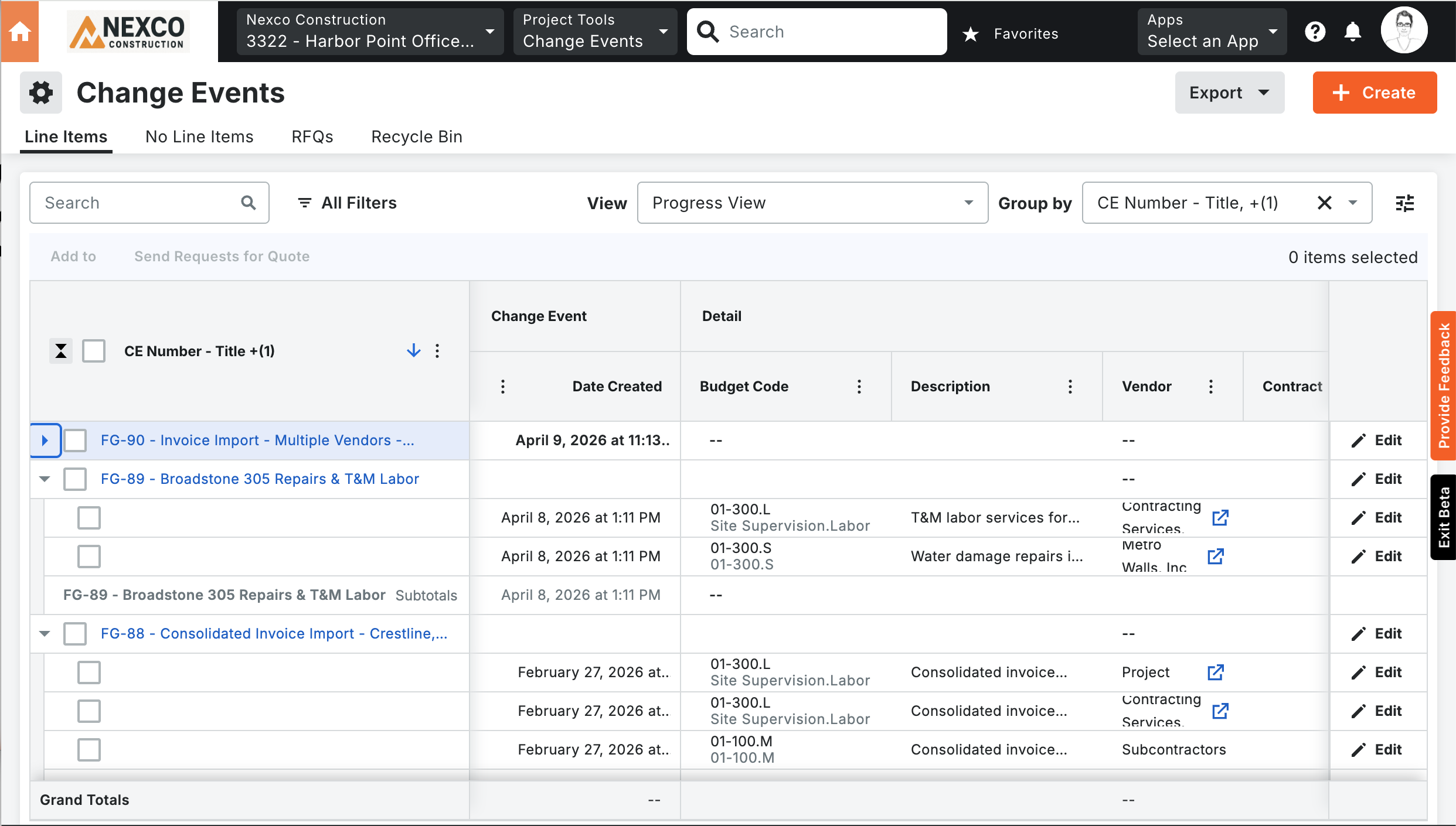
Change events track potential cost and scope changes in Procore before they become formal change orders. Teams document impacts early, evaluate them, and link them to downstream cost workflows.
Each change event contains line items with vendors, cost codes, amounts, and change reasons:
- Line items. Individual cost entries with descriptions, amounts, and budget codes.
- Change reasons. Categories that classify why the change occurred.
- Linked commitments. Connections to subcontracts and purchase orders affected by the change.
When you need to bulk import line items
One-off change events take a minute. The pain shows up when line items arrive in bulk:
- Project buyouts. When a GC awards contracts during buyout, hundreds of line items per package need to land in Procore against the affected budget codes. Hand-keying isn't realistic.
- T&M ticket batches. Field crews submit time and materials tickets daily. By Friday, a project can have 40-80 tickets to capture across multiple vendors and cost codes.
- Vendor invoice rollups. A pending batch of vendor invoices (concrete, drywall, mechanical) lands in Procore as line items before rolling into commitment change orders.
- Site-week catch-up. After a heads-down week, a project comes back to a backlog of paperwork to file before month-end close.
The bottleneck isn't Procore. It's the prep.
How to import line items with Procore's CSV template
Procore's native bulk import is the Schedule of Values CSV template. It runs from inside an existing change event and adds new line items.
Step 1. Open the change event
Navigate to the Change Events tool, open or create the event you want to populate, and find the import option on the line items tab.
Step 2. Download the Schedule of Values template
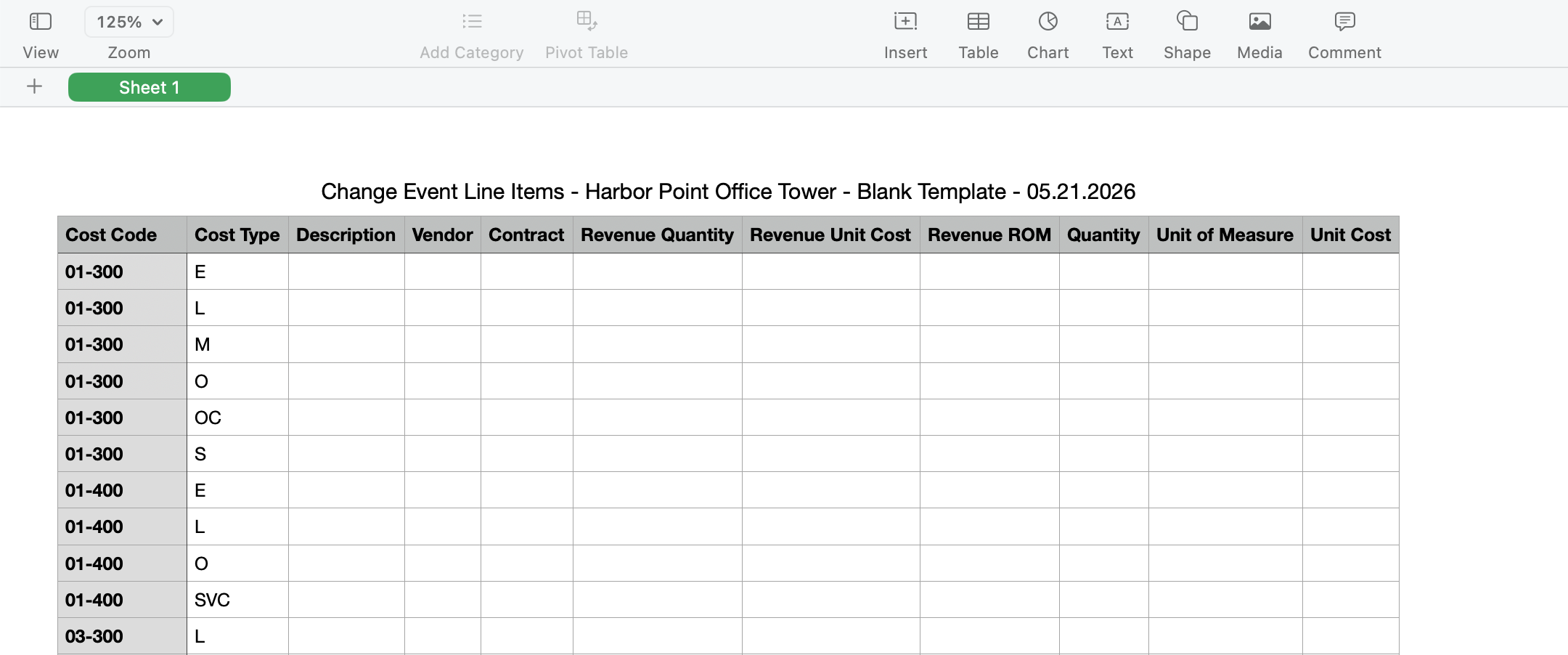
Procore provides a formatted CSV that mirrors the project's cost code structure and required fields.
Step 3. Populate the template
Fill in the required columns: description, vendor, cost code, cost type, amount, and any project-specific custom fields. Values must match the project's configuration. Invalid cost codes or vendors fail at import.
Step 4. Upload and confirm
Upload the completed CSV, review any validation errors Procore surfaces, fix the data, and confirm the import.
That covers the basic case. Where it breaks down is the work that happens before you have a clean CSV.
The real bottleneck: getting line items into a CSV
Most line items don't arrive as a clean CSV. They arrive as PDFs, Excel files, vendor portals, and emails. The prep work depends on where the data lives.
Three import paths cover most of how teams move line items into change events.
| Path | Source format | Best for |
|---|---|---|
| Excel add-in | .xlsx workbooks | Buyout schedules, AP rollups |
| AI extraction | PDFs, scanned tickets | Vendor invoices, T&M tickets |
| Native CSV | Procore SoV template | One-off, already-clean batches |
Path 1: Excel add-in
Teams that already prep buyout schedules and T&M batches in Excel can import directly from the sheet they already work in.
Work in Excel
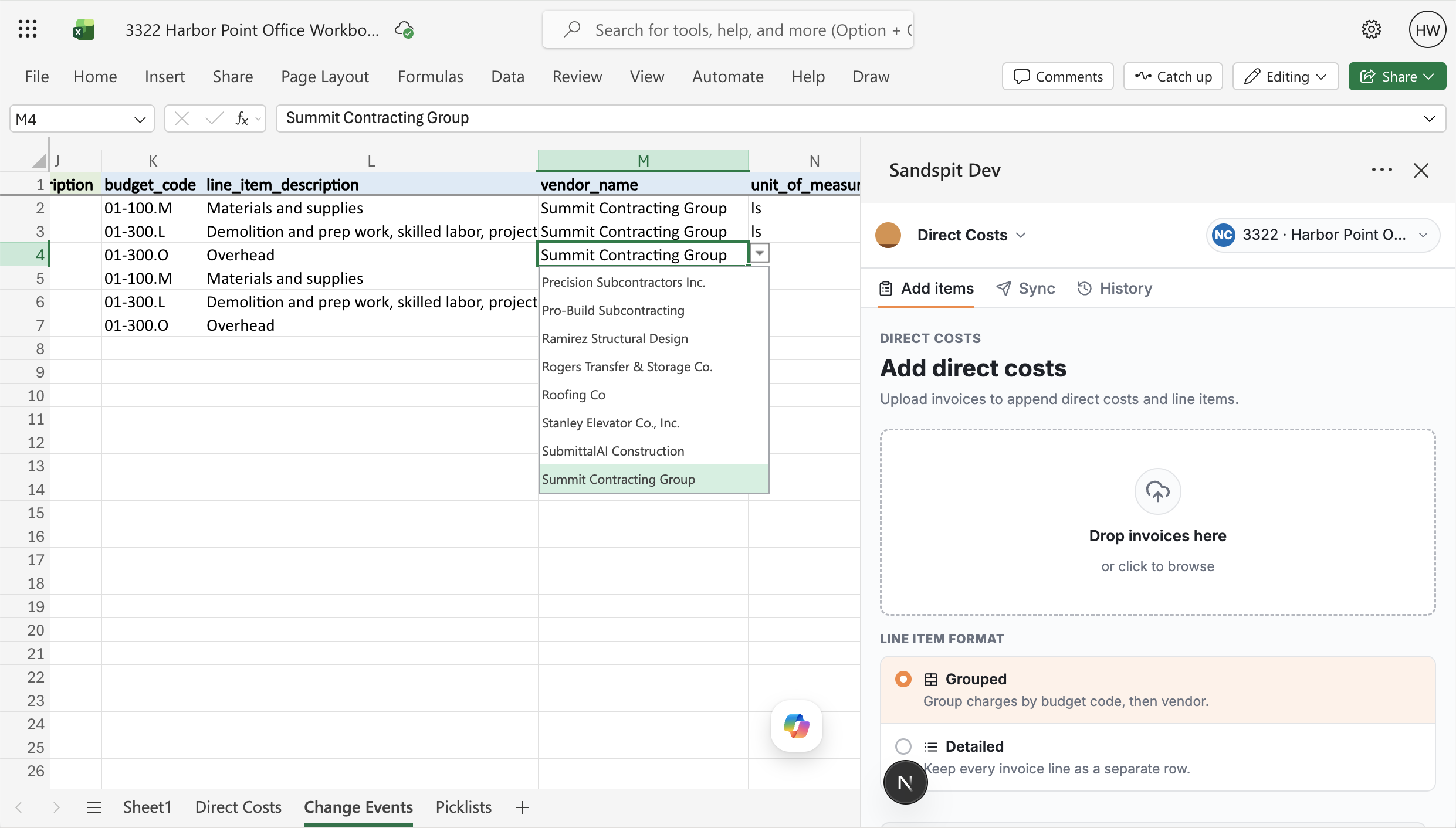
Sandspit's Excel add-in opens a Procore-connected panel alongside the sheet. Map columns to Procore fields once. Push line items into the change event from inside Excel.
Map vendors and cost codes against the project schema
The add-in pulls the live vendor list and cost code structure from Procore. Mismatches surface inline, before you push.
Bulk import without leaving the spreadsheet
Select rows. Push them as line items to the target change event. The sheet stays as the source artifact. Procore receives clean data.
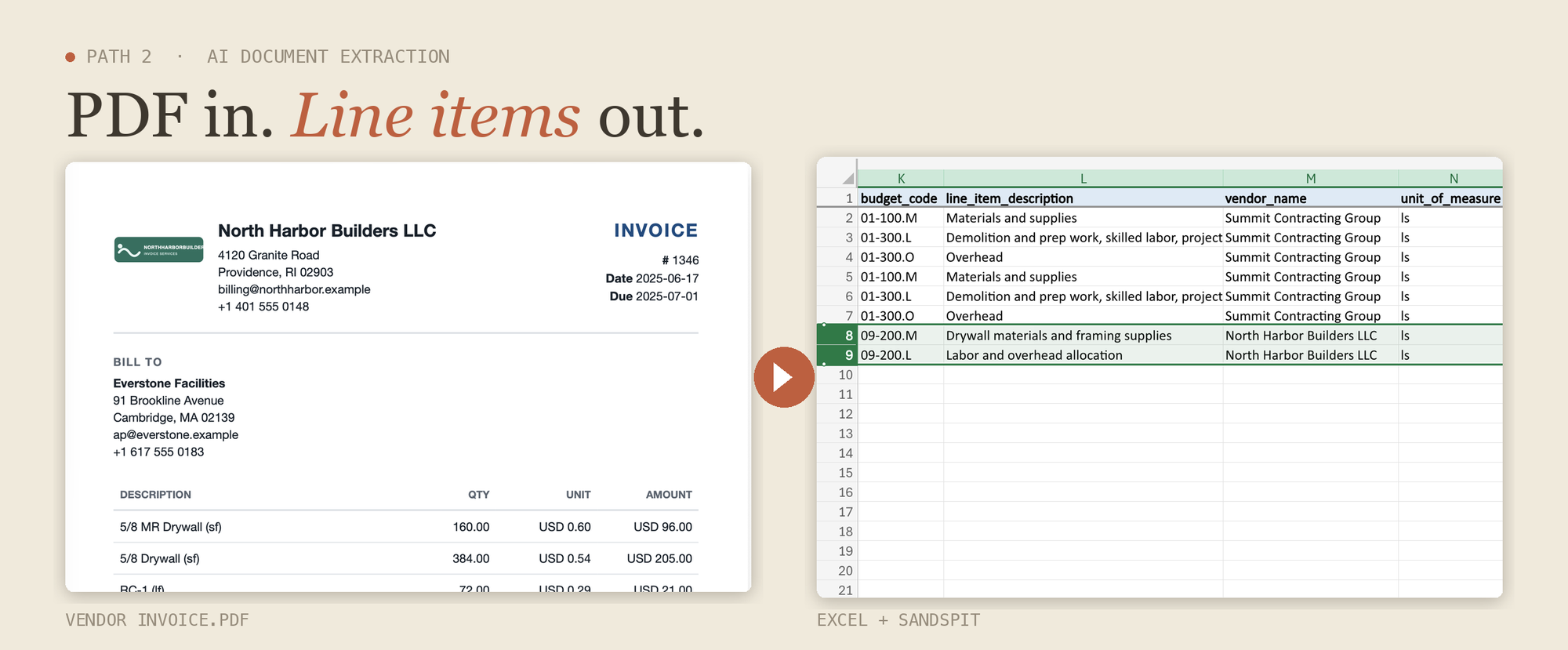
Path 2: AI document extraction
Line items locked inside PDFs and scanned tickets need a different workflow. The prep cost isn't reformatting. It's reading.
Drop in vendor invoices, T&M tickets, or signed COs
Sandspit's AI extraction reads vendor invoices, T&M ticket forms, and subcontract addenda. Output is one row per line item: description, quantity, rate, amount, and a best-guess vendor and cost code pulled from the document.
Review extractions in a staging grid
Extracted rows land in a grid where you confirm vendor matches, adjust cost codes, and edit descriptions. Source PDFs sit alongside the grid, so you verify against the document, not from memory.
Validate, then sync to Procore
Once reviewed, sync the rows to the target change event. Procore receives the line items in one operation instead of forty.
Path 3: Project buyout
Buyouts are the largest single bulk-import event in most projects. A mid-sized job sees 20-40 trade packages awarded across a few weeks, each with its own line items, vendors, and cost codes.
Prepare the buyout schedule
Most buyout schedules live in Excel, organized by trade package. Each row is a contracted scope item with a vendor, cost code, and amount.
Stage line items by trade package
Group rows by the target change event, usually one event per trade package or subcontract. Sandspit's grid filters and selects across packages, so the buyout sheet maps cleanly to the events being created.
Validate against the project schema
Cost codes change between projects. Vendor master lists drift. Validation catches mismatches across the full buyout in one pass, instead of one invoice at a time three months later.
Sync to Procore
One sync per trade package, hundreds of line items per sync. Procore receives the data. The buyout schedule remains your source artifact.
One sync per trade package. Hundreds of line items per sync.
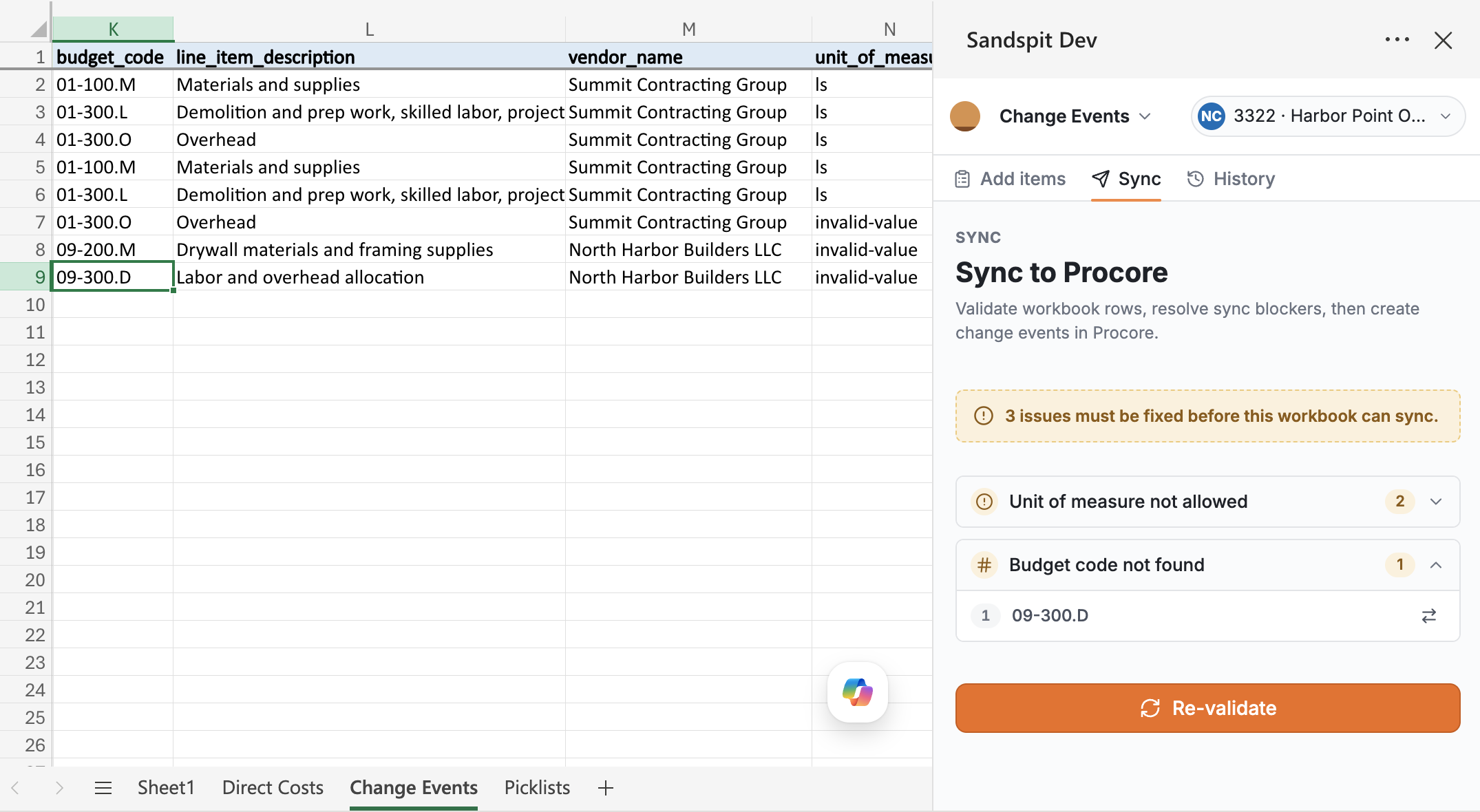
How to validate line items before importing
Validation separates bulk import that works from bulk import that breaks a hundred records at once. The same checks apply across all three paths.
Matched Cost code mismatch Vendor not in directory
Every row in the staging grid carries a state. Rows tagged Matched push cleanly to Procore. Rows flagged mismatch or not in directory get reviewed, corrected, or excluded before sync.
Check against project vendors and cost codes
Validate entries against the project's configured vendor directory, cost codes, and cost types. Invalid values get flagged before import, not after.
Catch stale values and budget code mismatches
Flag entries that no longer line up with the current budget structure. Stale data is the most common cause of failed imports.
Review source documents alongside the grid
Pull the original PDF, T&M ticket, or invoice up next to the extracted data. Numbers get confirmed against the source, not the AP team's transcription.
Bulk import change events faster with Sandspit
Sandspit is the staging layer between your sources (Excel, PDF, T&M ticket, vendor portal) and Procore change events.
- Excel-native. The Excel add-in lets your team prep and push from the sheet they already work in.
- AI document extraction. PDFs and T&M tickets become structured line items without re-keying.
- Buyout-scale workflows. Import hundreds of line items per trade package in a single operation.
- Guardrails before sync. Vendor and cost code validation runs before Procore ever sees the data.