 Sandspit
Quick Start
Install the Procore App
Sandspit connects to Procore through a single app install. This grants the secure connection Sandspit uses to read and write your project data. Do this first, then choose where to work: the web app, the Procore side panel, or the Excel add-in.
Prerequisites
Before you begin, make sure you have:
- A Procore account with access to at least one project
- Procore admin permissions to install third-party apps. If you're not an admin, ask your Procore admin to complete these steps
- The Procore tool permissions for the work you plan to do (for example, Change Events, Direct Costs, or Budget access on the projects you'll use)
Note
Permissions
Sandspit inherits your Procore permissions. You'll only see projects and tools you already have access to in Procore. Sandspit uses OAuth 2.0, so we never store your Procore password, and you can revoke access at any time from your Procore account settings.
Step 1: Install the app in Procore
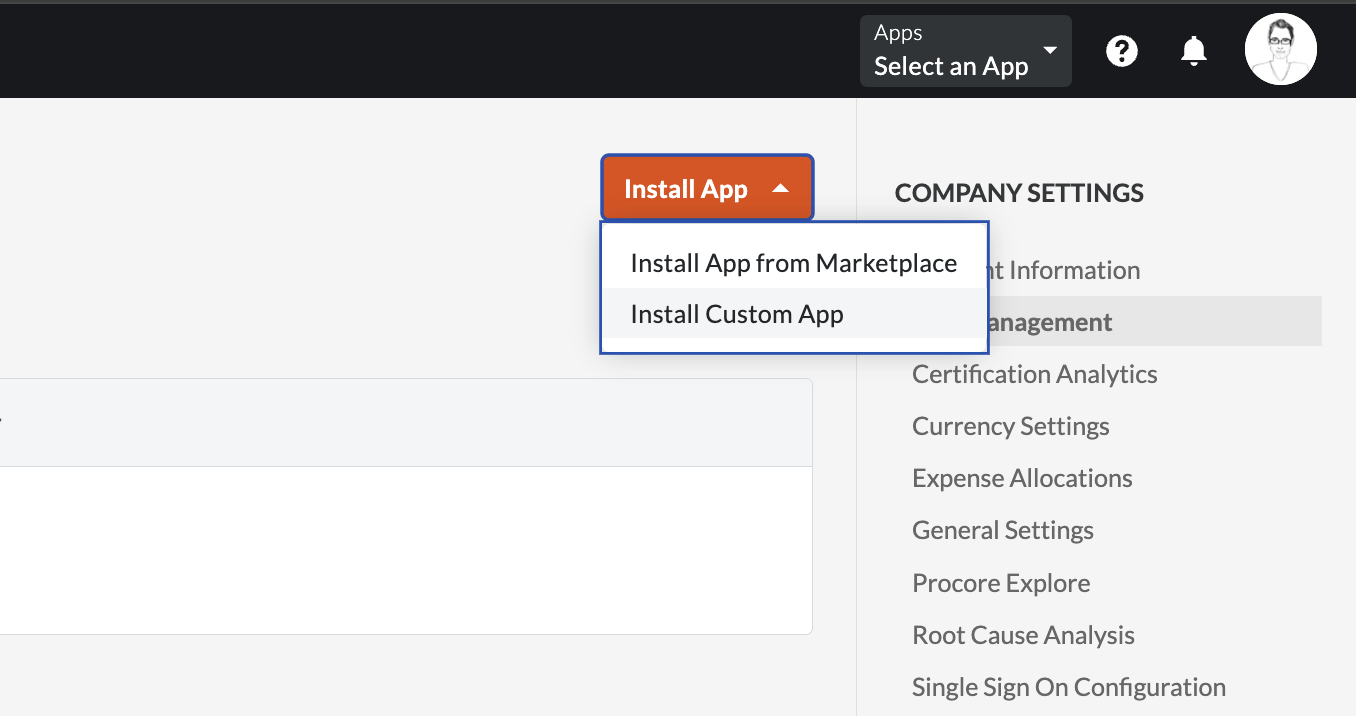
In Procore, open the App Management area from the company admin tools and click Install App.
Step 2: Enter the Sandspit application ID
Procore will prompt you for an application ID. Paste in the Sandspit application ID:
9187231a-07d7-4ae2-bd7b-d705ee265b1d 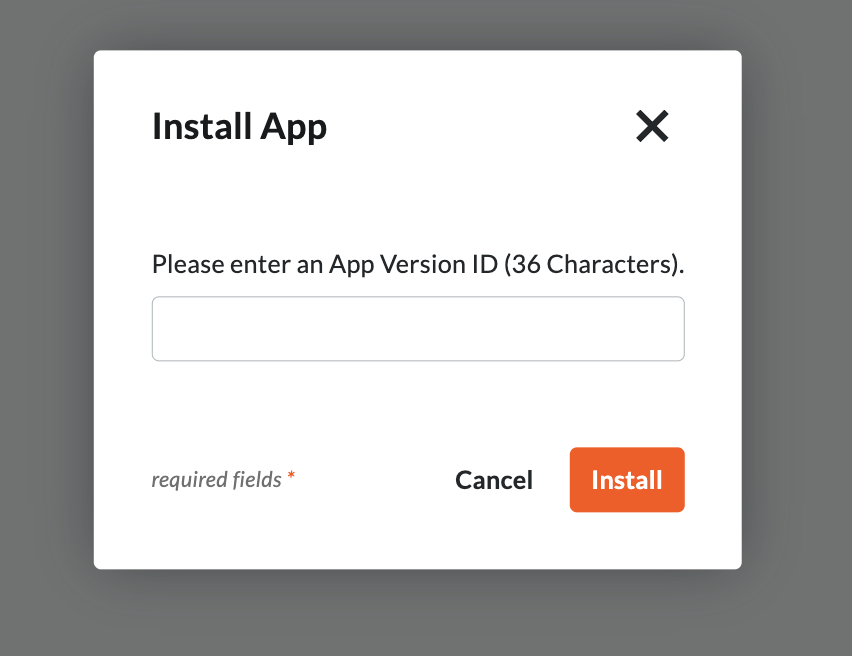
Procore will show the permissions Sandspit is requesting. Review them and click Install to authorize the connection.
Tip
You're connected
With the Procore app installed, you can sign in to Sandspit anywhere it runs using your Procore account. The Excel add-in needs no further Procore setup.
Next steps
- Install the Excel Add-in: sideload the Sandspit add-in to work with Procore data directly in Excel
- Install the Embedded App: optionally show Sandspit inside Procore's navigation for the embedded web app
- Project Selection: pick which Procore projects to bring into Sandspit
- Where Sandspit Runs: the web app, side panel, and Excel add-in
Note
Have questions? Reach out to our support team at support@getsandspit.com.